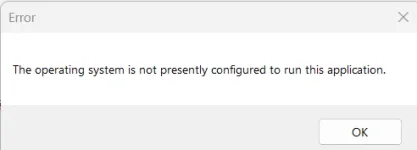
Once compile to exe and run "The operating system is not configured to run this application"

Once compile to exe and run "The operating system is not configured to run this application" on Windows 11 and Office 365
after rerun application its working. but not sure what happen to end user?
Error message as below :
1783679871873.webp
 
Before anything else, please check one thing, because it decides the rest: the processor architecture of the machine. XLS Padlock protected applications require 64-bit Windows on an Intel or AMD (x64) processor. They do not currently support Windows on ARM, and on an ARM machine the protection layer's startup self-check can fail with exactly this "The operating system is not presently configured to run this application" message.

I put this first because you also asked about running on a Mac. If this Windows is Windows on ARM, for example Windows 11 on ARM inside Parallels, VMware Fusion, or UTM on an Apple Silicon (M-series) Mac, or on an ARM device such as a Snapdragon or Copilot+ PC, then the app is running under ARM emulation, and that is the most likely cause here rather than a setting you can change.

How to check: open Settings, then System, then About, and look at "System type".

  • If it reads "ARM-based processor", that is the cause. The protected app is not supported on Windows on ARM at the moment, it needs to run on a real x64 Windows machine (a normal Intel or AMD PC). The fact that it sometimes starts on a second try does not make ARM a supported target, the self-check is simply not reliable there.
  • If it reads "x64-based processor", the architecture is fine and we look at the environment instead, below.
If you are on x64 Windows, the usual cause of this exact message is antivirus or endpoint-security software interfering with the freshly extracted protected code as it starts. That fits the "works on the next run" behaviour, and it is fixable:

  • Antivirus and Defender: add exclusions for the folder the .exe runs from, and on your build machine for the XLS Padlock installation folder and XLSPadlockDesigner.exe. Check Windows Security, Virus and threat protection, Protection history for anything removed or blocked that points at your .exe. On managed PCs, attack-surface-reduction and anti-exploit rules that block Office-related process injection are a frequent trigger.
  • Run location: launch the .exe from a normal local folder such as C:\Temp, not from a cloud-synced folder (OneDrive, Dropbox, Google Drive) or a network drive.
  • Latest build: we released XLS Padlock 2026.1 today, which hardens the embedded runtime. If your maintenance is active it is a free upgrade, so update, rebuild, and redistribute.
To point you the right way, could you tell us:

  • The System type from Settings, System, About (ARM-based, or x64-based).
  • Your exact XLS Padlock version and build (Help, then About).
  • Whether it happens on one machine or several, and which antivirus or security suite runs on the affected machine.
 
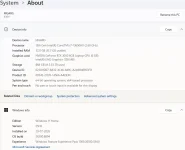
My System configuration:
Processor 13th Gen Intel(R) Core(TM) i7-13650HX (2.60 GHz)
Installed RAM 32.0 GB (31.7 GB usable)
Graphics card NVIDIA GeForce RTX 3050 6GB Laptop GPU (6 GB)
Intel(R) UHD Graphics (128 MB)
Storage 868 GB of 2.33 TB used
System type 64-bit operating system, x64-based processor
Pen and touch No pen or touch input is available for this display

Is this suitable for XlsPadlock ?
1785479368980.webp
 
Yes, your machine is perfectly suitable. An i7-13650HX with 32 GB of RAM on 64-bit Windows with an x64 processor is well above what XLS Padlock needs, and the "System type" line settles the important question: this is not the ARM limitation. So we can set that aside entirely and look at the environment instead.

That points at security software interfering with the protected code as it starts, and one detail in your first message supports it strongly: you wrote that the application works when you run it a second time. A block that disappears on the second launch is the classic signature of an on-access scanner inspecting files that have just been extracted. The first launch loses the race, the second one finds everything already in place.

There is one specific thing to try, and it is new information since our last reply here. Another customer had a related startup failure on a corporate machine, and his IT team found that Microsoft Defender was blocking one particular file:

XLSPadlockLoad64.exe

That is the XLS Padlock loader, not your own compiled EXE. It matters because the usual advice, "exclude the application EXE and its folder", does not cover it, which is exactly why the block kept happening in his case. So please add an antivirus exclusion for XLSPadlockLoad64.exe (and XLSPadlockLoad32.exe if you build 32-bit), alongside your compiled EXE and its folder. While you are there, open Windows Security, then Virus and threat protection, then Protection history, and see whether anything was blocked or removed at the moment you launched.

Two things would help us narrow it down further:

  • Does it happen on one machine only, or on several?
  • Which antivirus or security suite is running on the affected machine?
Finally, the question you asked at the very start, which is the one that really matters: what happens to your end users. It is a fair worry, and the honest answer is that this class of problem depends on each user's security software rather than on your build. The strongest thing you can do about it is exactly what you are working on in your other thread: sign your compiled EXE. A signed application carries a publisher identity, and behavioural engines treat it far less aggressively than an unsigned executable that has just appeared on the disk. It will not eliminate every case, but it is the single measure that helps across all your users at once, so it is worth getting that signing working.

 
Back
Top