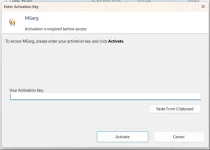
Solution System ID is present on Activation pop-up window

The thread has a solution
Solution
The System ID is only shown in this window when the project uses hardware-locked keys. Your screenshot shows the activation window without it, so this application was compiled with "Use hardware-locked keys" unchecked: it accepts keys that are not tied to a computer, and therefore has no System ID to display.

If you want each key to work on one computer only:

  • In XLS Padlock, open your project and, in the activation key settings, check "Use hardware-locked keys" next to "End users must enter an activation key...".
  • If you want to choose which hardware is used, click "System ID Options..." now, before you distribute the application, and do not change these options afterwards.
  • Compile the application again and distribute the...

The System ID is only shown in this window when the project uses hardware-locked keys. Your screenshot shows the activation window without it, so this application was compiled with "Use hardware-locked keys" unchecked: it accepts keys that are not tied to a computer, and therefore has no System ID to display.

If you want each key to work on one computer only:

  • In XLS Padlock, open your project and, in the activation key settings, check "Use hardware-locked keys" next to "End users must enter an activation key...".
  • If you want to choose which hardware is used, click "System ID Options..." now, before you distribute the application, and do not change these options afterwards.
  • Compile the application again and distribute the new EXE. Its activation window will show the user's System ID, with a button to copy it.
  • When a user sends you their System ID, paste it in the Key Generator of the same project to create their key.
The full steps are in our guide: https://www.xlspadlock.com/doc/how-to-set-up-hardware-locked-activation-keys
 
Solution
Back
Top