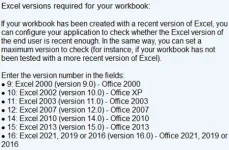
The Security, Excel Versions tab uses Microsoft's internal Office major version number, not a release year. The full mapping is:
- 9: Excel 2000
- 10: Excel 2002
- 11: Excel 2003
- 12: Excel 2007
- 14: Excel 2010
- 15: Excel 2013
- 16: Excel 2016, 2019, 2021, 2024, and 365
There is no 17, because Microsoft has kept Office's major version at 16.0 ever since Excel 2016. Excel 2019, 2021, 2024 and 365 all report
Application.Version = "16.0" and only differ by their build number (
Application.Build). So setting the minimum to 16 covers everything from Excel 2016 onward, including 2024.
The catch for your specific case
Setting minimum = 16 will let through Excel 2016 users who do not have
LET or
IFS, which is exactly the symptom you are trying to avoid. The Excel Versions tab cannot block on a sub-version (e.g. "2024 and newer only") because the underlying major version is identical across 2016, 2019, 2021, 2024, and 365.
For a function-level gate, do it at runtime in VBA at workbook open
The reliable way to require LET specifically is to test for it directly when the workbook starts, then bail out (or fall back) if it is missing. Two options:
Option A, feature probe (works on all 16.x builds, including 365):
Code:
Private Sub Workbook_Open()
    Dim hasLet As Boolean
    On Error Resume Next
    hasLet = (Application.Evaluate("=LET(x,1,x)") = 1)
    On Error GoTo 0

    If Not hasLet Then
        MsgBox "This workbook requires the LET function (Excel 2021/2024 or Microsoft 365). " & _
               "Your version of Excel does not support it. Please update Excel.", _
               vbCritical, "Excel version too old"
        ThisWorkbook.Close SaveChanges:=False
    End If
End Sub
Same pattern works for IFS by replacing the test formula with
=IFS(TRUE,1).
Option B, build number check (numeric, slightly faster):
Code:
Private Sub Workbook_Open()
    ' LET shipped to perpetual Office in Excel 2021 (build 14332.xxxxx).
    ' Safer threshold: anything 14000+ is 2021 or newer.
    If Application.Build < 14000 Then
        MsgBox "This workbook requires Excel 2021 or newer (your build is " & _
               Application.Build & "). Please update.", _
               vbCritical, "Excel version too old"
        ThisWorkbook.Close SaveChanges:=False
    End If
End Sub
The first option is more robust because it tests the actual presence of the function regardless of channel / build numbering quirks; the second is faster but assumes Microsoft's build numbering stays monotonic.
Combine both layers
The cleanest setup is: leave Security > Excel Versions at min=16 (so Excel 2013 and older are caught with the friendly XLS Padlock error message at EXE startup), and add the VBA feature probe at workbook open (so Excel 2016 users without LET also get a clean message rather than a
#NAME? formula error). Two checks, two layers, both customizable.
Side note about forums
You posted in the VBA Padlock subforum, but the question is about XLS Padlock (Security > Excel Versions tab is XLS Padlock terminology). No problem on our side, just flagging in case you want to find it later under XLS Padlock or expect future replies there. We are answering you here.