Linked Workbooks

elad770

New member
Hi everyone,

I'm very happy to be here.
I'm starting to realize that XLS Padlock is the right application for me as I finalize my project.

However, I still have few reservations and I hope it's OK if I can post my questions here so someone can guide me through.
(I'm currentley using the Trial version for testing)

- I have multiple workbook that are data linked to eachother by simple formula (=).
- The Idea is that multiple files will be distributed to different locations with different permissions but
- The main thing that I'm trying to determine is wether or not I can compile a file that can still be linked to another workbook
- All my attempts to make 2 workbook linked together have failed.

I'm sure I'm just missing something. Clearly, I would like to still protects formulas and VBAs as much as I can, but table linnking is critical for me

Thank you so much

Sincerely
Elad770
 
The idea is to add the second workbook as a companion file or to use our VBA helper to tell Excel where the second workbook lies (for instance in the same folder as the EXE, using our VBA helper PathToFile:
https://www.xlspadlock.com/doc/topi...-the-same-folder-as-the-compiled-workbook.htm

Please test the sample attached to this message. You have Master.xlsm and secondary workbook Test File.xlsx added as a companion file.
Open the Master.xlsm in Excel and start XLS Padlock. Then, compile to EXE and start the EXE. To let Excel find the secondary file, you can use VBA to open the secondary file (the button in Master) and it will automatically update references then.
 

Attachments

Ok,
first of all, thank you so much for responding. I've decided to purchase the program only because I see there's a backing support so thank you!

I implemented what you said with partial success.

A. I don't like that the VBA actually "Calls" the test file and user can see it, needs to click save etc. Maybe if this was a one time thing it's managbale but the Idea is that in my case, the test file is a large database that I don't want the user to have access to and would like it to work seemlesley in the backround.

B. The biggest issues was:

The VBA works when the regular copy is running.
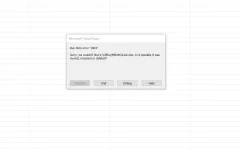
After compiling it (and after updatting the file name), excel gives me an error (see pic)

Maybe because the Padlock is changing the file path as a protection?

Not sure...Capture_2025_04_18_08_19_03_969.webp
 
Ok,
first of all, thank you so much for responding. I've decided to purchase the program only because I see there's a backing support so thank you!

I implemented what you said with partial success.

A. I don't like that the VBA actually "Calls" the test file and user can see it, needs to click save etc. Maybe if this was a one time thing it's managbale but the Idea is that in my case, the test file is a large database that I don't want the user to have access to and would like it to work seemlesley in the backround.

B. The biggest issues was:

The VBA works when the regular copy is running.
After compiling it (and after updatting the file name), excel gives me an error (see pic)

Maybe because the Padlock is changing the file path as a protection?

Not sure...
Yes, this strange path is due to the virtualization used by XLS Padlock. The workbook is always at a random virtual location.
That's why we use:

Code:
Public Function PathToCompiledFile(Filename As String)

Dim XLSPadlock As Object

On Error GoTo Err

Set XLSPadlock = Application.COMAddIns("GXLSForm.GXLSFormula").Object

PathToCompiledFile = XLSPadlock.PLEvalVar("XLSPath") & Filename

Exit Function

Err:

PathToCompiledFile = ""

End Function

The VBA actually opens the companion workbook file and immediately closes it. So the end user cannot browse it or save it.
 
I appreciate your response but you didn't reply to the second part which is the main part (look at the pic)

I get an error message after compiling

Thanks
 
Also, I ran the test with your files. Exactley the way you described. The code works but when I change any data in "test" file it does not reflect in the master. Let me know what I'm missing here

elad
 
Also, I ran the test with your files. Exactley the way you described. The code works but when I change any data in "test" file it does not reflect in the master. Let me know what I'm missing here
To change the data in test file, I suppose that you haven't closed the workbook file?
 
I don't understand. Please be patient with me 🙏

It worked for a second and then it did not work again.

- I opened the test file made the change, nothing happened.
- Then I closed the test file and immidiatley that change took place in the master
- I repeated the same step - Nothing!

Can you please explain step by step?

This is a video showing what I did to make it work. But upon closing and opening the exe file again, the link was lost and I couldn't duplicate what I did


I would HIGHLY appreciate if you could help me solve this. This is by far the most important feature becasue I need to use 1 file as a database and install multiple exe files in multiple computers while 1 data file is connected to a shared folder.
Again, this work perfectley with regular excel files but I'm only partially able to have success here

Elad
 
Last edited:
Let me also ask it this way to sharpen my question.

After compiling, can I achieve in one way or another what this guy is demonstrating here

To view this content we will need your consent to set third party cookies.
For more detailed information, see our cookies page.

I need multiple workbooks that are installed (in a compiled form) and stored in different working stations to be able to be linked to each other so I can retrieve data.

I would appreciate your help and guidance

Elad770
 
Can you please explain step by step?
This is a video showing what I did to make it work. But upon closing and opening the exe file again, the link was lost and I couldn't duplicate what I did
To keep the reference file, the workbook companion file must be saved or not closed.

I need to use 1 file as a database and install multiple exe files in multiple computers while 1 data file is connected to a shared folder.
In that case, your database file must be kept outside the EXE file and not added as a companion file. The compiled workbook will then still be able to access external workbook files with VBA or by specifying in the formula the full path to your workbook database file.
And in that case PowerQuery will work too.
 
To keep the reference file, the workbook companion file must be saved or not closed.


In that case, your database file must be kept outside the EXE file and not added as a companion file. The compiled workbook will then still be able to access external workbook files with VBA or by specifying in the formula the full path to your workbook database file.
And in that case PowerQuery will work too.
This is fantastic news!!! 👏
However, my initial post was because I tried to do that and it didn't work.

Can you explain what you mean by "Full path" ?
What i did was simply go to a Cell
Go to the formula and write =
Go to the other workbook and press that cell
Pressed enter and that's it.
When I used the uncompiled sheets it seemed to work. When I compiled , it did not.
Is there a difference between what I did amd what you suggest?

Elad770
 
Full path = something like
Code:
='D:\my documents\excel\tests\indirect\[TestFile.xlsx]Data Sheet'!$A$6
With a share network, replace D:\my documents by \\SERVERPATH\excel ...
 
When I used the uncompiled sheets it seemed to work. When I compiled , it did not.
Is there a difference between what I did amd what you suggest?
It's because without a path, Excel expects the linked workbook to be in the same path as the main workbook file. In case of XLS Padlock, the compiled workbook is at a non-existing virtual location, so that you must enter a full path to linked workbook files. I guess we'll have to make another sample for that case.
 
It's because without a path, Excel expects the linked workbook to be in the same path as the main workbook file. In case of XLS Padlock, the compiled workbook is at a non-existing virtual location, so that you must enter a full path to linked workbook files. I guess we'll have to make another sample for that case.
A. And this is why when I simply clicked on the other workbooks cell to finish the formulated link, it didn't work because eventhough the exe file and the linked workbook ARE in the same location, they are not really because of the virtual environment the exe file is IN. Perfect explanation 👌
B. I will try to do what you said. Hopefully it works.
C. Regardless, even without checking to see that it works, I've decided to purchase the product. Made a payment 2min ago and I encourage everyone to follow suit.
If there's something I appreciate more than the function of the software is the people behind it !!

P.s Kindly leave the thread unsolved until I'll test it amd report successfull. I observe the Sabbath and won't be able to test today due to the Sabbath - Passover Combo holiday we have in few hours

Again, I highly appreciate the communication and support.

Elad770
 
Ok, so... It did not work. I made a few seconds video showing exactley what I'm doing. Please let me know what i'am doing incorrectley


Sincerely
Elad770
 
Yes, we wrote a new sample that shows how to retrieve data from another external workbook without using companion files, with the INDIRECT feature. Please allow a few days so that we can finalize it. Thank you.
 
I tried to use the formula but it doesn't work.
Can you please demonstrate and/or explain how to I get my linked workbook to be updated when another excel workbook data is changed.
This is a critical function for me and need a resolve. I would appreciate the help
 
Back
Top